In today's increasingly privacy-conscious internet, discussions about the "best browser" are common. However, a lesser-known fact is that all browsers carry privacy and security risks, some of which we can control, and others that are entirely beyond our influence.
Even more concerning is that many risky features are initially developed under the guise of "user protection" or "enhanced convenience," yet they often pose significant threats to privacy. This is the fundamental difference between cybersecurity and privacy protection—many so-called "security experts" focus solely on functional security, completely disregarding user privacy.
This article will expose the hidden privacy pitfalls within browsers and conclude with a practical browser isolation strategy to help you effectively mitigate these risks.
Web Workers: The Invisible Background Monitor
Real-Life Example: Forgotten Background Tracking
Let me share a personal experience. I was testing browser functionality on a de-Googled phone, a device typically isolated from Google and not associated with any Google ID. During testing, I logged into Gmail in the Chromium browser, then logged out, completely forgetting about it.
Months later, I was shocked to discover on my Google Security page: Google not only identified my de-Googled phone but also accurately recorded my location information!
This made me realize that even after logging out, some form of program was continuously running in the background of my browser—this is Web Workers.
How Web Workers Work and Their Risks
Web Workers are JavaScript code that can run in the browser's background, characterized by:
- User Interface Independence: They operate entirely in the background, imperceptible to the user.
- Persistence: Web Workers can automatically resume operation even after the device is turned off and restarted.
- Any Website Can Install: Any website can install a Web Worker in your browser.
- Continuous Communication: They constantly send data (like IP addresses, location, etc.) to servers via HTTP requests.
In my case, the Web Worker installed by Gmail continuously sent device information to Google's servers, even though I had logged out of my account.
The Solution
The only effective way to clear them is to completely clear your browser's Cookies. However, if you forget to do so, Web Workers will continue to monitor your online activities.
HSTS Supercookies: The Undeleterable Identity Tracker
What is HSTS?
HSTS (HTTP Strict Transport Security) is, in principle, a security feature designed to prevent malicious attackers from downgrading HTTPS connections to unencrypted HTTP.
When a website enables HSTS, it creates a "supercookie" in your browser, forcing it to always use HTTPS to access that site. Theoretically, even if someone tries to tamper with the website's code to switch to HTTP, the browser will automatically revert to HTTPS.
A Privacy Catastrophe: Undeleterable Tracking Identifiers
But here's the fatal flaw: HSTS cookies are completely undeletable through conventional methods! This is why they are called "supercookies."
This means:
- Your Identity Becomes Permanent: Websites can perpetually identify and track your historical data.
- Third Parties Can Use Them for Browser Fingerprinting: By compiling the set of HSTS cookies in your browser, they can uniquely identify you.
- You Can Be Tracked Even Without Logging In or Entering Information.
While some browsers offer complex clearing methods, you can't even easily see which cookies are supercookies.
HSTS's Design Flaw
The designers of this feature clearly overlooked privacy concerns. In reality, websites can completely disable HTTP access directly on the server-side without leaving undeletable tracking identifiers in the browser.
Autofill: The Convenience Trap for Data Leaks
Seemingly Convenient, Actually Dangerous
Many people enjoy using their browser's autofill feature: enter your name and address once, and it automatically fills in on other websites later. Password managers also use similar mechanisms for automatic logins.
However, this introduces two major privacy risks:
Risk 1: Others Can Easily Access Your Accounts
Real-life Example: My cousin borrowed my computer to access an e-commerce site. After he left, I clicked on the site, and my browser automatically logged into his account. I could see all his transaction history and even make purchases on his behalf!
Risk 2: Malicious Websites Can Steal Your Information
A more insidious threat: Any website can embed hidden form fields (like name, address) on a page, and your browser will automatically fill them. Using JavaScript, the website can capture this data before you even click "Confirm" or "Save."
I once created a test website to verify this: not only could it retrieve autofill data, but it could also hide the form, stealing information without the user ever knowing.
The Solution
Never enable autofill or password managers in any browser.
Browser Extensions: Opening Pandora's Box
The Overlooked Privacy Black Hole
Many people are unaware of how browser extensions work, leading them to install various extensions without hesitation.
Typical Example: Grammarly Extension
Take the Grammarly grammar-checking extension as an example. It carries multiple privacy risks:
- Remote AI Analyzes Your Input: Every word you type is sent to a remote server.
- Extensions Can Access All Browser Content (technically called the DOM): This includes documents you're editing, web pages you're browsing, etc.
- Third Parties Gain Access to Your Private Content: If you're writing a document in Google Docs, not only can Google see it, but Grammarly's AI can also read it.
Technical Risks of Extensions
In theory, any browser extension can:
- Intercept your web page content.
- Act as a "man-in-the-middle" to steal data.
- Send information to third parties without your knowledge.
Recommendations
- Avoid installing extensions whenever possible.
- Be particularly wary of extensions that "intercept" your actions, such as shopping assistants (claiming to find cheaper deals on Amazon for you).
- Beyond their promised functionality, what else are these extensions doing? Do you really know?
Automatic Downloads and Malware Risks
The Hidden Attack Path
While modern browsers now block direct downloads of executable files (like .exe or .bat), attackers can still:
- Download Masqueraded Executables: Malicious code disguised as safe file types like .txt is automatically downloaded.
- Induce You to Run Programs Through Other "Harmless" Downloads: They search for these files in your download folder.
- Rename Them Back to Executable Formats and run them.
Since each step is an independent "harmless" operation, antivirus software often fails to detect this combined attack.
Protective Measures
Regularly check your browser's default download folder and delete any files you don't recognize.
Google Ad Topics: Your Interests Laid Bare
Google's New Tracking Mechanism
Google now categorizes your interests based on the websites you visit and records them in the browser's "Google Ad Topics."
A New Privacy Threat
While Google has always tracked you, what makes Ad Topics different is:
- Any third-party website can view your topic list.
- This allows unfamiliar websites to understand your interests and preferences.
- You never explicitly consented to this data sharing.
The good news is that Google has limited the granularity of topics. For instance, even if you're deeply interested in politics, the topic might only show "News" without revealing your political stance.
How to Turn It Off
Currently implemented only in Chrome, it can be disabled in settings:
Settings > Privacy and security > Ad privacy > Ad topics
Browser Fingerprinting: Identity Tracking Without Login
What is Browser Fingerprinting?
Browser fingerprinting is a collection of techniques used by third-party advertising companies to track users. Unlike deterministic tracking (like Google ID, Facebook ID), fingerprinting is non-deterministic tracking and doesn't require you to log in or provide any personal information.
How Tracking Works
Browsers expose a wealth of information:
- Device model
- Color capabilities
- Screen resolution
- Installed extensions
- IP address
- Time zone
- HSTS site list
- And more
Combining this information often allows for the unique identification of a user.
The Threat of Cross-Site Tracking
Advertising companies can track most websites you visit. For example, by monitoring whether you visit CNN, Fox News, or MSNBC, they can generally infer your political leanings.
Google's Response and Limitations
Google is attempting to curb tracking by limiting the available fingerprinting data and promoting Ad Topics as an alternative. However, this faces multiple challenges:
- Ad companies find Topics insufficiently granular.
- Ad Topics are only available in Chrome.
- Anti-fingerprinting technologies are also limited to Chrome.
- HSTS supercookies and extensions can still be used for tracking.
My assessment is that browser fingerprinting will not disappear, and both Google and third parties will continue to track users.
MasLogin Solution: Professional Implementation of Browser Isolation Strategy
Why Browser Isolation?
In the face of the aforementioned privacy risks, traditional browsing methods are no longer sufficient to protect user privacy. I employ a strategy called browser isolation and elevate it to a professional level with MasLogin Anti-Detect Browser.
Core Principle: Isolating the Most Dangerous Tracking Sources
Google and Facebook possess unique cross-site tracking capabilities:
- Google: Through Google Analytics and Google Ads (installed on most websites).
- Facebook: Through the Facebook Like button (also widely deployed).
Even if you're not on their sites, they can identify your Google ID or Facebook ID.
Traditional Browser Isolation Methods
My personal basic approach is:
- Chrome Dedicated to Google Only log in to your Google account and YouTube. Allow Google to track you fully. But never visit any other websites.
- Other Browsers for Daily Activities Use Brave to visit Amazon, news sites, etc. Completely avoid Google services: no searching, no logging in, no visiting Google sites. This prevents other sites from linking your behavior to your Google ID.
- A Third Browser for Sensitive Activities Use Firefox to watch YouTube videos on sensitive topics (without logging in). Further segmenting data to prevent third parties from building a complete profile.
By partitioning data this way, it becomes difficult for third-party trackers to determine "who I am" and "what behavior belongs to me."
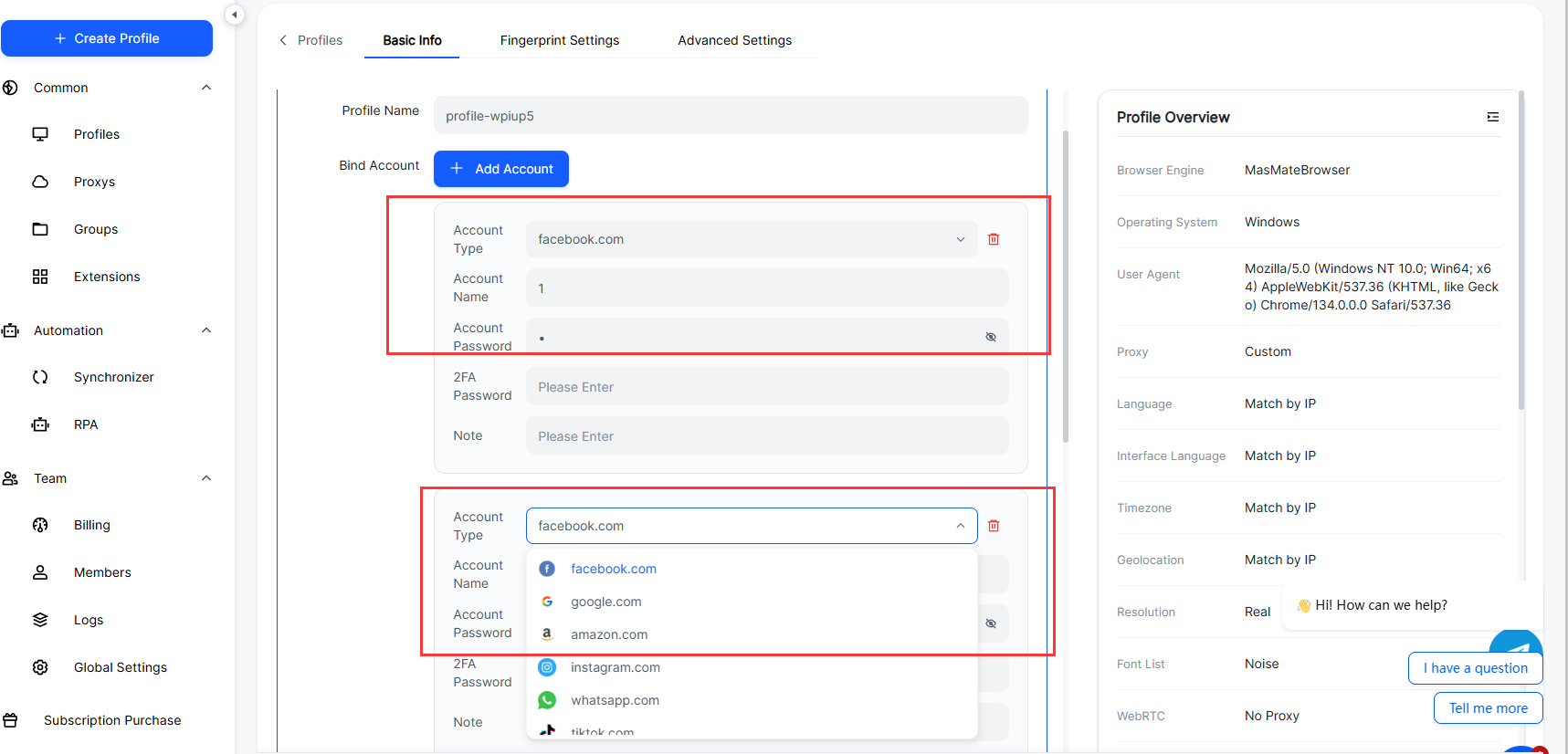
MasLogin Practical Guide: Implementing Browser Isolation Step-by-Step
![8U@XMRY])OZY8P601%UY[B1.png](https://oss.seoinfra.cn/production/files/0/1765779867106324324_75741.png)
Addressing the various privacy risks mentioned in this article, here are the specific operational steps using MasLogin:
Scenario 1: Managing Multiple Social Media Accounts (Avoiding Linked Account Bans)
Problem: Manually switching browsers is prone to confusion, and the risk of fingerprint association is high.
MasLogin Solution:
- Create Independent Environments Open MasLogin and click "New Browser." Create a separate browser environment for each social media account. Naming convention: e.g., "Twitter-Account 1," "Facebook-Marketing Account."
- Configure Independent Fingerprints In the environment settings, select "Auto-generate fingerprint." Or set manually: choose different operating systems (Windows/Mac/Linux), browser versions, screen resolutions, etc. Key: Ensure each account's fingerprint combination is unique and realistic.
- Bind Independent Proxies In "Proxy Settings," configure a different proxy IP for each environment. Ensure the proxy IP's geographic location is consistent with the account's usage region. Test proxy connections to ensure no IP leaks.
- Daily Operation When using, directly open the corresponding account's browser environment. Log in and operate normally; MasLogin will automatically isolate Cookies, Web Workers, etc. Close the environment after finishing operations; MasLogin will retain the account state but isolate all tracking data.
- Preventing Web Worker Tracking MasLogin, by default, clears all background processes upon closing an environment. For extra security, enable "Clear all data upon closing" in the settings.
Scenario 2: Team Collaboration for Managing Client Accounts (E-commerce/Advertising)
Problem: Team members need to share accounts, but traditional browsers cannot securely share environments.
MasLogin Solution:
- Create Shared Environments An administrator creates browser environments, configuring fingerprints and proxies. In "Team Management," add members and assign permissions (e.g., "View Only," "Editable").
- Member Access Team members log into MasLogin and directly see the shared environments. No password sharing is needed; they can operate directly by opening the browser. All operational logs are recorded for auditing.
- Avoiding Account Association Each client account uses an independent environment and proxy. Even if team members operate from the same computer, the platform cannot associate different accounts.
Scenario 3: Private Browsing and Sensitive Information Queries
Problem: You don't want Google or third parties tracking certain sensitive searches and browsing activities.
MasLogin Solution:
- Create a "Temporary Environment" Create a new browser environment specifically for sensitive activities. Do not log into any Google or social media accounts.
- Configure High Privacy Settings Use randomly generated browser fingerprints. Bind a highly anonymous proxy (e.g., SOCKS5). Enable "Clear all data upon closing."
- Operational Flow Open the temporary environment for searching or browsing. Close the environment immediately after finishing; MasLogin will clear all Cookies, cache, and Web Workers. When using it next time, a fresh fingerprint and proxy will be generated, making identification impossible for platforms.
Scenario 4: Preventing Privacy Leaks from Autofill
Problem: Concerns that malicious websites might steal information through autofill.
MasLogin Solution:
- Globally Disable Autofill In MasLogin settings, turn off "Autofill forms." Manually enter information or use a standalone password manager (like Bitwarden).
- Environment-Level Control For environments requiring quick logins, use MasLogin's "Environment Variables" feature. Save account passwords only in specific environments; other environments will not save them.
Scenario 5: Clearing HSTS Supercookies
Problem: HSTS cookies are undeletable in traditional browsers.
MasLogin Solution:
- Environment Isolation Solves It Automatically Since each MasLogin environment is completely isolated, HSTS cookies only exist within that specific environment. Even if undeletable, they cannot be used for fingerprint tracking across environments.
- Complete Clearing Method To clear HSTS data for a specific environment, simply delete that environment. Recreating the environment starts from scratch, resetting all supercookies.
MasLogin's Additional Advantages: Beyond Traditional Browser Isolation
In addition to addressing the privacy risks mentioned above, MasLogin offers features unattainable with traditional methods:
1. Automated Operation Support
- Integrates with automation tools like Selenium and Puppeteer.
- Suitable for batch operations (e.g., social media posting, data collection).
2. Cross-Device Synchronization
- Cloud storage for browser configurations.
- Seamlessly switch work environments across different computers.
3. Professional Anti-Detection
- Optimized for anti-detection against platforms like Amazon, Facebook, and Google.
- Regularly updated fingerprint library to counter platform anti-detection upgrades.
4. Compliance Support
- Helps businesses compliantly manage multiple accounts (e.g., ad agencies, e-commerce operations).
- Provides operational logs for audit purposes.
Getting Started with MasLogin: Achieve Professional-Grade Browser Isolation
Who is it for?
- Cross-border E-commerce Professionals: Manage multiple shop accounts to avoid linked bans.
- Social Media Marketers: Operate multiple social media accounts to improve work efficiency.
- Privacy-Conscious Users: Prevent tracking by giants like Google and Facebook.
- Enterprise Teams: Securely share browser environments and collaboratively manage client accounts.
How to Start?
- Visit the MasLogin Official Website for details.
- Download the trial version to experience core features for free.
- Refer to the MasLogin Help Center for quick setup.
- Read the MasLogin Blog for more usage tips.
FAQ
1. Can browser isolation completely prevent tracking?
Browser isolation is not a foolproof solution, but it significantly reduces tracking risks. By dispersing different activities into independent environments, it becomes difficult for third parties to build a complete user profile. Combined with MasLogin's fingerprint management and proxy isolation, near professional-level privacy protection can be achieved.
2. How exactly do Web Workers threaten privacy?
Web Workers are background JavaScript processes that can continue running even after you close a webpage or restart your device. They can persistently send your IP address, location, and other information to servers without your knowledge. Clearing cookies can terminate Web Workers, but many people forget to do this.
3. Why are HSTS Supercookies undeletable?
HSTS Supercookies are special cookies created by browsers to enforce HTTPS connections. By design, they cannot be deleted by users. This allows websites to track your identity permanently. Tools like MasLogin can bypass this limitation through environment isolation.