When managing multiple accounts and needing layered privacy protection, many users opt to create multiple profiles within the same browser to separate work, personal, and specific service accounts. Arc Browser, with its innovative multi-profile management interface, has become a preferred tool for many. But is relying solely on the browser's built-in profile feature truly sufficient for secure account isolation? Under what circumstances is this method effective, and what are its potential risks?
This article will delve into the advantages and limitations of Arc Browser's multi-profile strategy, using real user case studies, and provide an advanced solution based on MasLogin Anti-Detection Browser to help you choose the most suitable account isolation strategy for different scenarios.
Arc Browser Multi-Profile Management: Convenient but Limited
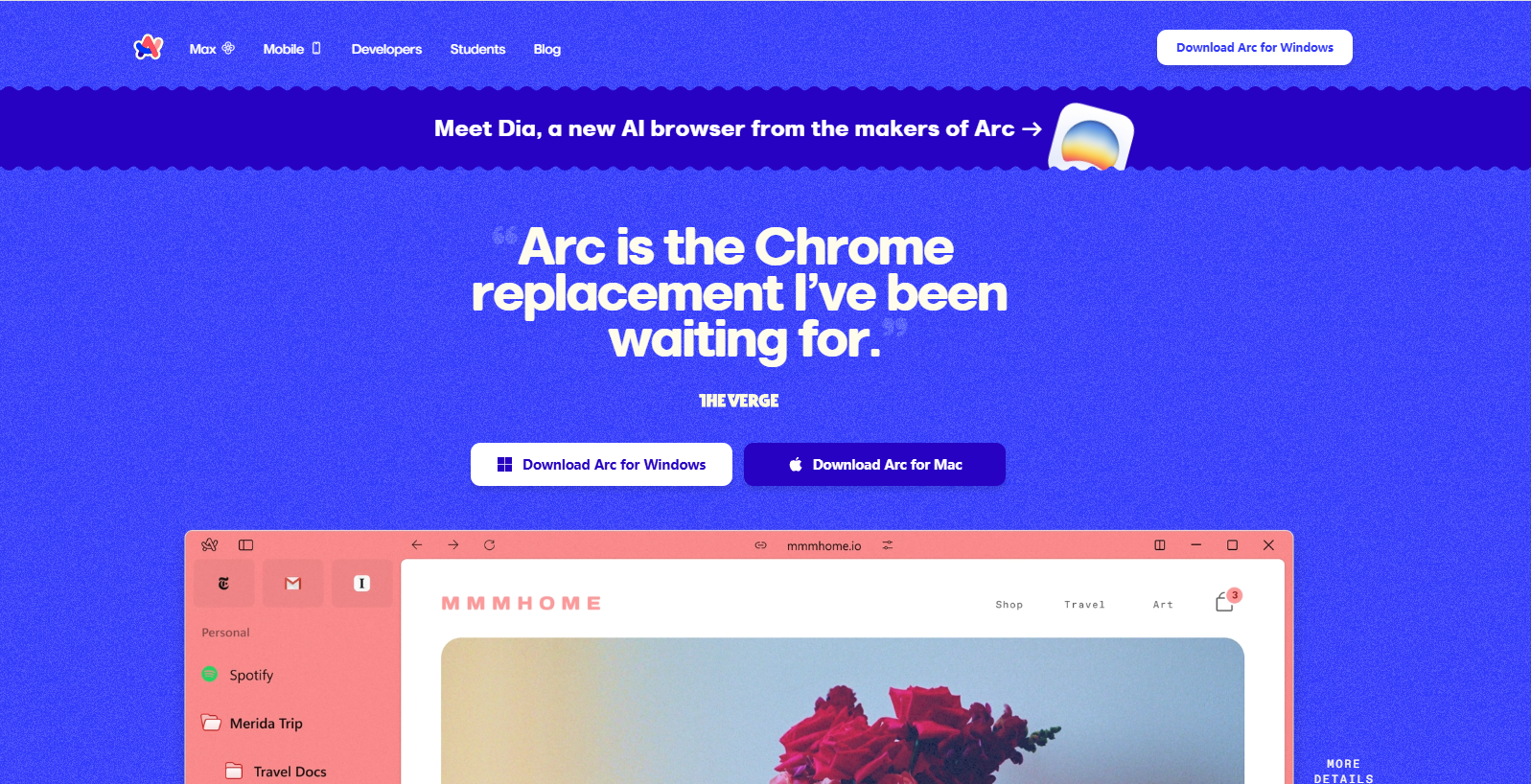
Typical User Scenarios
A real case from the community: Steve created three independent profiles in Arc Browser:
- Personal Account Profile: For daily browsing and private social media.
- Work Account Profile: To log into company-related services.
- Google Services Profile: Specifically for managing YouTube, Gmail, etc.
Each profile is configured with the ProtonVPN extension and automatically connects to the VPN upon startup. Steve's question is: Can this method provide adequate privacy protection and account isolation?
The Actual Effect of Multi-Profile Functionality
The multi-profile mechanism in Arc Browser is fundamentally the same as the profile functionality in Chrome, Brave, and other browsers—each profile has:
- Independent Cookies and Cache: Prevents confusion of login states across profiles.
- Independent Extension Configuration: Each profile can install different VPNs or security tools.
- Independent Browsing History and Bookmarks: Achieves basic separation of usage scenarios.
From a technical standpoint, the multi-profile feature does indeed achieve basic data isolation, equivalent to opening three separate browser windows simultaneously. For the everyday privacy needs of ordinary users (such as avoiding ad tracking and distinguishing between work and personal life), this method is sufficient.
Why Multi-Profile Strategies Fall Short in Certain Scenarios?
While multi-profiles offer convenience, their limitations become apparent in the following scenarios:
1. Browser Fingerprints Remain the Same
All profiles share the same browser kernel and underlying fingerprint characteristics, including:
- Operating System Fingerprint: Screen resolution, font list, time zone, etc.
- Hardware Fingerprint: GPU model, Canvas fingerprint, WebGL parameters.
- Network Fingerprint: IP address (even with a VPN, the VPN exit node can still be associated).
For platforms that rely on device fingerprints for risk control (e.g., Facebook, Amazon, Google Ads), multi-profiles cannot completely avoid account association risks.
2. Extensions Can Become Privacy Vulnerabilities
Many browser extensions (including some VPN extensions) have cross-profile access permissions. If an extension has data leaks or is maliciously exploited, it could lead to information leakage between different profiles.
3. Fatal Flaw in Multi-Account Risk Control Scenarios
For professional users who need to manage multiple platform accounts (e.g., cross-border e-commerce, social media operations, advertising teams), platform risk control systems detect:
- Multiple Account Logins on the Same Device: Even with different profiles, the platform can still identify it as the same computer.
- Behavioral Pattern Similarity: Login times, operational habits, and device characteristics are highly consistent.
Real Risk Case: A cross-border e-commerce team used Arc Browser multi-profiles to manage 5 Amazon stores. Despite each profile being configured with a different VPN, 3 stores were associated and banned within a week due to identical device fingerprints.
Advanced Privacy Isolation Solutions: From Multi-Profiles to Multi-Layered Protection
Depending on varying privacy needs, account isolation strategies can be categorized into the following levels:
Basic Level: Browser Multi-Profiles (Suitable for Daily Privacy)
- Applicable Scenarios: Separating work and personal life, avoiding ad tracking.
- Advantages: Simple operation, managing everything in one browser.
- Limitations: Cannot counter device fingerprint detection, not suitable for high-risk account management.
Advanced Level: Combination of Different Browsers (Suitable for Moderate Isolation Needs)
- Applicable Scenarios: Requiring stronger account isolation but not involving platform risk control.
- Example Configuration:
Real Application Tip: Set up a "default browser" (e.g., Mullvad Browser) specifically for handling temporary links to avoid exposing your main account environment when accidentally clicking on links.
Professional Level: Virtual Machines or Separate Devices (Suitable for High Privacy Needs)
- Applicable Scenarios: Scenarios that require complete isolation of the system environment.
- Limitations: High hardware costs, complex operation, not suitable for batch account management.
MasLogin Solution: The Ultimate Choice for Professional Multi-Account Management
For professional users who need to manage multiple platform accounts in bulk and must avoid association risks, MasLogin Anti-Detection Browser offers an industry-leading solution.
How MasLogin Solves the Core Pain Points of Browser Multi-Profiles?
1. Independent Browser Fingerprint Environments
Unlike ordinary browsers' "shared fingerprints across multiple profiles," MasLogin generates completely independent virtual browser environments for each account, including:
- Operating System Level Fingerprints: Canvas, WebGL, AudioContext, and other parameters are completely randomized.
- Hardware Fingerprint Isolation: Each environment simulates different device models, GPUs, and screen resolutions.
- Network Fingerprint Independence: Supports configuring independent proxies (Socks5, HTTP, SSH) for each environment.
Real Effect: Even on the same computer, platform risk control systems will identify each MasLogin environment as a "completely different device."
2. Team Collaboration and Permission Management
MasLogin supports:
- Shared Browser Environments for Multiple Users: Team members can access the same account simultaneously without sharing passwords.
- Granular Permission Control: Administrators can set members to only view/edit specific accounts.
- Operation Log Tracking: Records the login and operational behavior of each member.
Applicable Scenarios: An advertising team needs 10 people to jointly manage 50 Facebook ad accounts. MasLogin can prevent password leaks and provide precise permission management.
3. Batch Automated Operations
MasLogin integrates with Selenium and Puppeteer, supporting:
- Batch Account Login: One-click startup of multiple independent environments.
- Scheduled Task Execution: Automated posting, data collection, and ad placement.
- RPA Workflow Orchestration: Enables complex operations without programming.
MasLogin Practical Implementation: Step-by-Step Professional-Grade Account Isolation
Scenario 1: Cross-Border E-commerce Team Managing 10 Amazon Stores
Problem
- Using Arc Browser multi-profiles + VPN led to 3 stores being associated and banned.
- Requires collaboration for 5 team members, but sharing passwords poses security risks.
MasLogin Implementation Steps
Step 1: Download and Install MasLogin
Visit the MasLogin Official Website and download the client compatible with Windows/Mac.
Step 2: Create Independent Browser Environments
- Open MasLogin and click "Create New Browser Environment."
- Create an independent environment for each Amazon store: Environment Name: Amazon Store A Fingerprint Configuration: The system automatically generates random device fingerprints (you can manually adjust OS, browser version, screen resolution, etc.). Proxy Configuration: Bind an independent Socks5 proxy to each environment (the IP address must be consistent with the store's registration location).
- Repeat the above steps to create 10 independent environments.
Step 3: Configure Team Collaboration Permissions
- In MasLogin's team management section, add 5 team members.
- Assign corresponding store access permissions to each member:
Step 4: Daily Operations and Risk Control Avoidance
- Login Operations: Only launch the MasLogin environment corresponding to the specific store each time, avoiding simultaneous logins of multiple stores on the same computer.
- Operational Habits: Browsing behavior and login times for different stores should vary to avoid patterned operations.
- Proxy Stability: Periodically check if the proxy IP is flagged as high-risk by the platform.
Risk Control Suggestions:
- Use independent residential proxy IPs for each store (avoid using data center IPs).
- Maintain an interval of at least 30 seconds between operations to simulate real human behavior.
- Regularly clear cookies and cache to prevent data remnants.
Scenario 2: Social Media Operations Team Managing 50 Facebook Accounts
Problem
- Bulk-registered accounts are easily detected as bots by Facebook.
- Requires automated posting, but traditional scripts can easily trigger risk control.
MasLogin Implementation Steps
Step 1: Batch Creation of Account Environments
- Import 50 account details (email, password) into MasLogin.
- The system automatically generates an independent browser fingerprint environment for each account.
Step 2: Configure Proxy Strategy
- Bind independent residential proxy IPs to each account.
- Set proxy rotation rules: Change the IP every 24 hours (to avoid using the same IP for extended periods).
Step 3: Automated Posting (Using Selenium)
from selenium import webdriver


driver = webdriver.Remote(
    command_executor='http://localhost:9222',
    options=maslogin_options
)
Automate Facebook login
driver.get('https://www.facebook.com')
driver.find_element_by_id('email').send_keys('your_email')
driver.find_element_by_id('pass').send_keys('your_password')
driver.find_element_by_name('login').click()
Post an update
driver.get('https://www.facebook.com/share')
driver.find_element_by_css_selector('textarea').send_keys('Hello World!')
driver.find_element_by_css_selector('button[type="submit"]').click()
Risk Control Suggestions:
- The posting times for each account should be randomly distributed (to avoid detection of bulk operations).
- Posting content should be diverse, avoiding duplicate text.
- Perform manual operations on accounts regularly to simulate authentic user behavior.
Scenario 3: Individual Users Needing to Isolate Work, Personal, and High-Risk Operations
Problem
- Using Arc Browser multi-profiles, but concerned about ad tracking and device fingerprint association.
- Need to handle sensitive operations (e.g., cryptocurrency trading) in different environments.
MasLogin Implementation Steps
Step 1: Create Three Independent Environments
- Work Environment: Configure company VPN + standard browser fingerprint.
- Personal Environment: Configure home IP + common browser fingerprint.
- High Privacy Environment: Configure Tor proxy + randomized fingerprint.
Step 2: Set Default Browser Strategy
- Set Mullvad Browser as the system's default browser (for handling temporary links).
- Manually open websites that require isolation within MasLogin.
Step 3: Regular Environment Cleanup
- Delete the high privacy environment immediately after each use (MasLogin supports one-click environment clearing).
- Clear cookies weekly for the work and personal environments.
Best Practice Recommendations for Different Scenarios
Daily Privacy Protection (Low Risk)
Recommended Solution: Arc Browser Multi-Profiles + ProtonVPN
- Target Audience: Ordinary users, not involving platform risk control.
- Operational Advice:
Multi-Account Operations (Medium Risk)
Recommended Solution: MasLogin Basic Version + Independent Proxies
- Target Audience: Cross-border e-commerce, social media operations, advertising placement.
- Operational Advice:
Team Collaboration + Batch Automation (High Risk)
Recommended Solution: MasLogin Team Version + RPA Automation
- Target Audience: Large teams, batch account management.
- Operational Advice:
Frequently Asked Questions
Is Arc Browser Multi-Profiles Secure Enough?
For general privacy protection (e.g., avoiding ad tracking, separating work and personal life), the multi-profile strategy is sufficient. However, if multi-account management or platform risk control is involved, relying solely on multi-profiles cannot prevent device fingerprint association risks.
What is the Difference Between MasLogin and Ordinary Browser Multi-Profile Features?
MasLogin generates completely independent browser fingerprint environments for each account, including full isolation of operating system, hardware, and network fingerprints. Ordinary browser multi-profiles only isolate cookies and cache, while the underlying fingerprints are identical.
How to Choose the Right Proxy Type?
- Residential Proxies: Best suited for platform risk control scenarios, simulating real user IPs.
- Data Center Proxies: Fast but easily detected, only suitable for low-risk operations.
- Tor Proxies: For high privacy needs (e.g., anonymous browsing), but slower.
Does MasLogin Support Mobile Operations?
Currently, MasLogin only supports Windows and Mac clients. However, you can access shared browser environments via remote desktop.
How to Prevent MasLogin Environments from Being Detected as Automation Tools by Platforms?
- Avoid robotic operational patterns (e.g., fixed time intervals).
- Manually operate accounts regularly to simulate authentic user behavior.
- Utilize MasLogin's fingerprint randomization feature to avoid overly regular fingerprint characteristics.
Conclusion
Browser multi-profile features provide a convenient solution for daily privacy protection, but their limitations are undeniable in professional multi-account management scenarios. By combining MasLogin Anti-Detection Browser's independent fingerprint environments, team collaboration, and automation capabilities, you can implement a truly secure and efficient account isolation strategy.
If you are looking for a more powerful multi-account management tool, feel free to visit the MasLogin Help Center to learn more about practical cases and configuration tips.